Now it is time to export the data from LS Central and run the Initial load pipeline to create the pre-staging tables, load the data from the files into the pre-staging tables, merge into staging and from there into the data warehouse star schema tables.
Setup Analytics in LS Central
Follow the best practice described in the Analytics setup page to configure Analytics. It could look something like this:
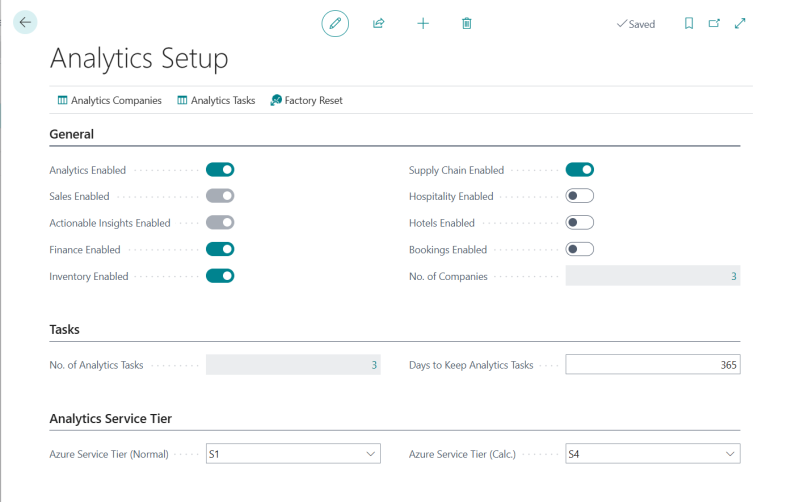
When you have finished the configuaration you can export the data.
Export data
In LS Central Saas make sure you are located in the company you want to export. If you added more than one company to Analytics you need to repeat the steps below for all companies before continuing.
-
Navigate to the Export to Azure Data Lake Storage page
-
Click the Export action from the top menu. This will start the data export, go through all listed tables and display how many tables have data and will be exported in a message box.
You can follow the export in the table list - there you can see "last exported state" and when the last export was started and if there were any errors. You can also select a table from the list and click the Execution logs action from the Tables menu to view the log for a table.
This step might take some time when you run it for the first time. Especially if you are exporting from a company that has been running in SaaS for some time and contains high volumes of transactional data.
When you scroll through the list you should see Success or Never run as the status of all tables. If any tables get last exported state as Failed and errors you can simply run the export again but you should wait until all In Process tables are done.
You should let the export finish for one company at a time and then you can move over to the next company and do the initial export there in the same way, you only need to do the schema export once and the table and field configuration is global for the environment. All you need to do is to navigate the the Export to Azure Data Lake storage in the other companies and click Export.
You will then schedule exports for the companies once the initial load is complete.
Check exported data in Azure
When all data has been exported you can navigate to the storage account and container in Azure portal and verify that a Deltas folder has been created. Once you have done that you can choose the next step.
Run Initial load
Now that you have finalized the setup the modules you do not want to run, you can start running the pipelines.
First, you need to trigger a run of the Initial load pipeline. This pipeline triggers two other pipelines and a stored procedure. First,the PopulateQueryBase pipeline, which generates the queries to create and populate the staging tables, is triggered, and once that has finished running, the InitializeStagingTables stored procedure is run. This procedure creates the staging tables and after that is done the Scheduled Run pipeline is run for the first time and performs the initial data load of the data warehouse.
Please follow these steps:
- In the Azure Data Factory, open the Author option, the pencil icon on the left navigation menu. Here you can see the Pipelines section, with all the available pipelines. There should be 15 pipelines.
- Expand the Pipelines section and 4 - ETL Flows folder.
- Select the Initial load pipeline.
- You then need to trigger this pipeline manually by selecting Trigger/Add trigger > Trigger now from the top menu.
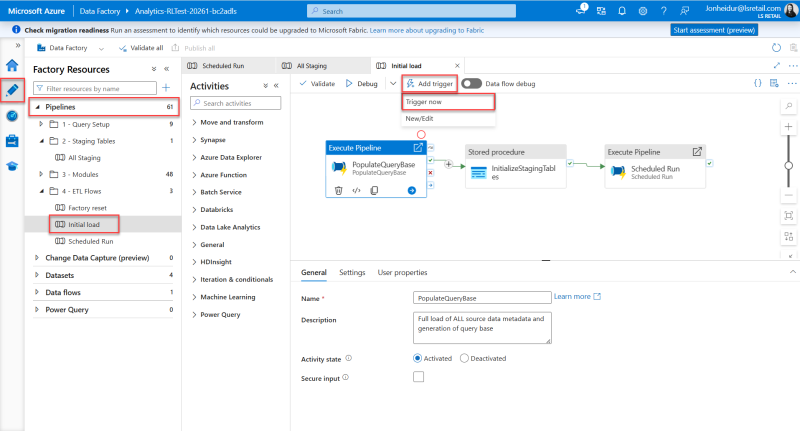
- The Pipeline run window opens. Click OK to start the run.
- This triggers the pipeline to start running and any notifications will be shown under the notification bell icon in the blue ribbon.
- This run can take several hours, depending on the data volume, and you must wait for it to finish before you continue.
To monitor the run of the pipeline, see the pipeline monitoring guideline.
If the initial run of the pipeline does not complete and has errors, it is always good to inspect the errors to see if you can figure out what went wrong. The most common pipeline errors are connection issues. Solutions to some errors are described in the FAQ, Troubleshooting & Support documentation.
If you are unable to find the source of the error, contact Technical Support on the LS Retail Portal to get help solving the problem.
When the Initial load pipeline has completed with status Succeeded you can move on to the next step.